Impact Analysis Guide How to use Impact Analysis
Impact analysis helps you understand how lifestyle changes affect your body over time.
Step 1: Open Impact Analysis
Go to the analytics tab in the app.
Step 2: Choose what you want to track
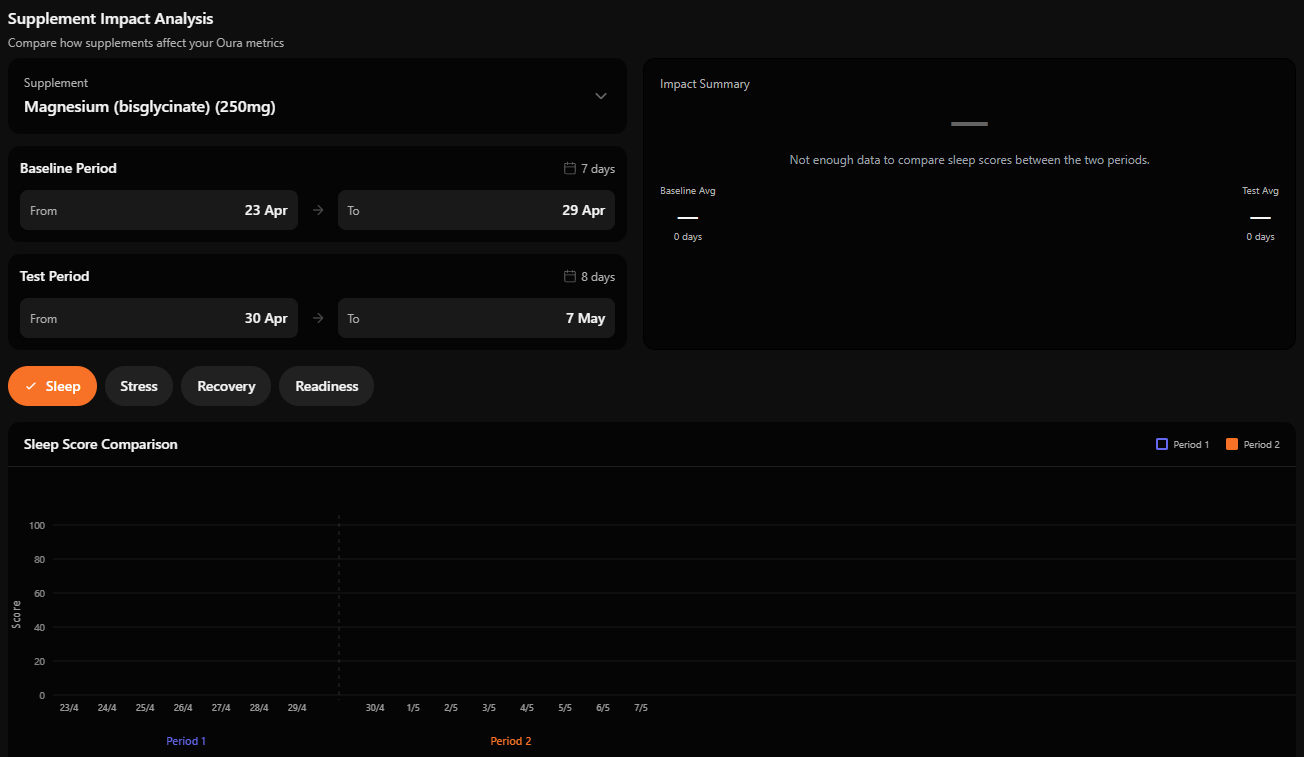
Use the drop down menu at the top. Select the lifestyle change you want to analyse.
Step 3: Set your baseline period
- Choose a baseline start and end date. - This should represent your normal routine. - Avoid unusual events (e.g. travel, illness, big lifestyle changes).
Step 4: Set your test period
- Select the period when you introduced your change. - This is where EVOLV tracks the impact of your behaviour.
Step 5: Choose what you want to measure
Select one outcome: -Sleep -Stress -Recovery -Readiness
Step 6: View your results
Once selected, your results will appear automatically. What you'll see: Impact Summary
Average result during your baseline period % change during your test period
Score Comparison Graph
Purple = baseline period Orange = test period Blue dashed line = baseline average Daily changes hown for easy comparison
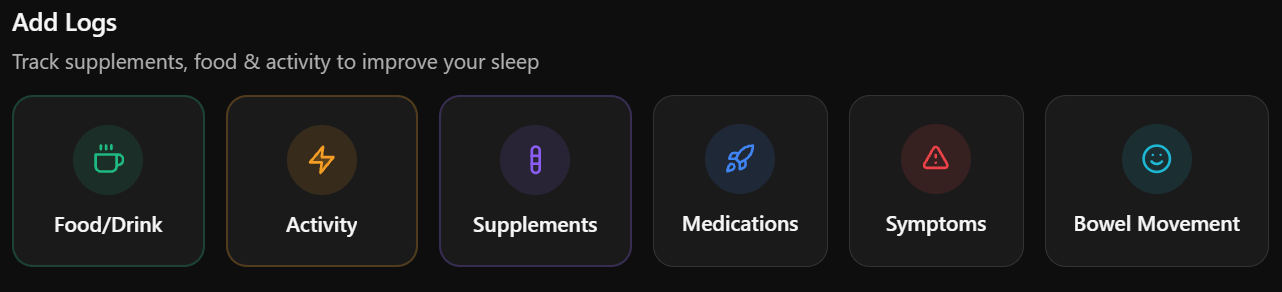
Logging Guide How to log your data
Logging helps EVOLV understand your habits and provide accurate insights.
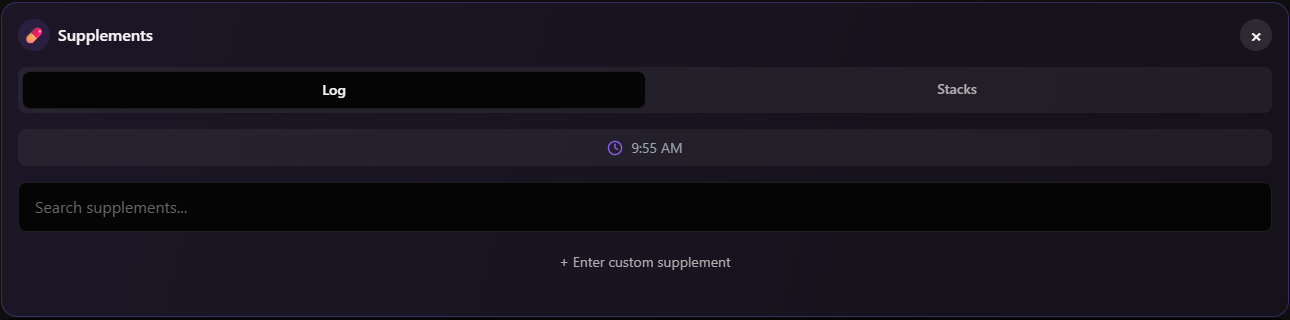
- Select the time taken - Search for your supplement ( or add custom) - Enter dosage - Add optional notes - Tap Log Supplement - Supplement Stacks (auto-logging)
Use stacks for supplements you take regularly.
- How to set up a stack: - Go to Supplements -> Stacks tab - Name your stack - Select days of the week - Turn Auto-Populate ON (optional) - Add supplements + dosage - Tap Save Stack
Food / Drink Logging
- Select time of meal - Choose meal type (Breakfast / Lunch / Dinner or Snack) - Search or add food manually - Add quantity - Repeat for all items - Tap Log Meal For regular meals:
- Go to Food / Drink -> Templates - Tap Create Template - Name your meal - Choose meal type - Select days + time - Add foods + quantities - Turn Auto-Populate ON (optional) - Tap Save Template
Activity Logging
- Select time - Choose or create activity - Eneter duration + intensity - Add notes (optional) - Tap Log Activity
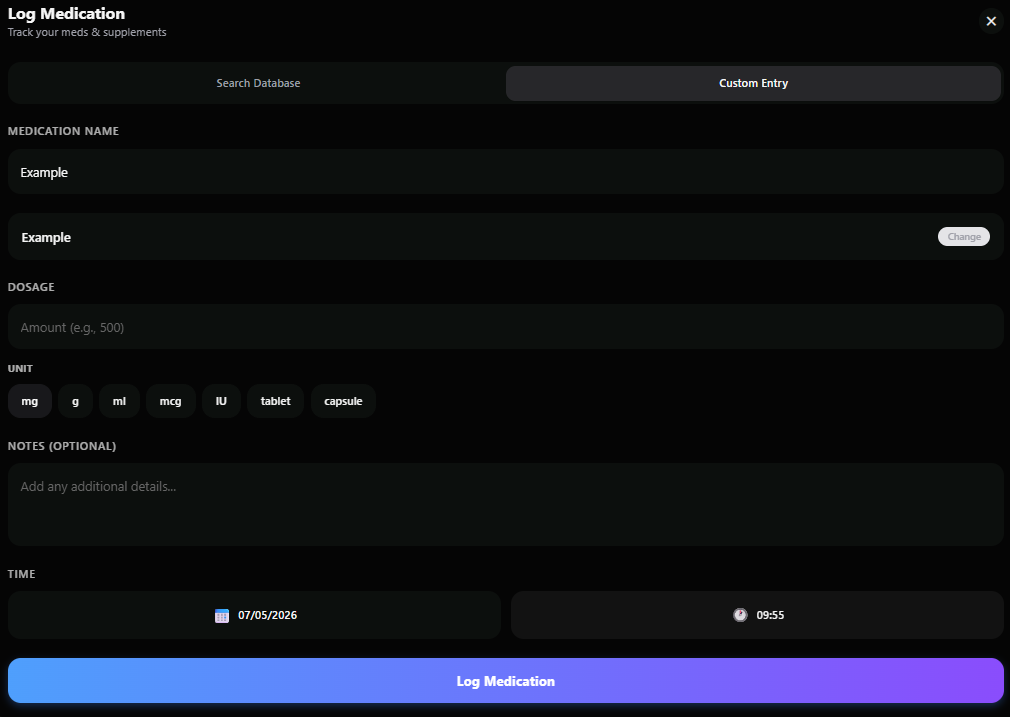
Medication Logging
- Search or add medication - Enter dosage + unit - Add notes (optional) - Select time + date - Tap Log Medication
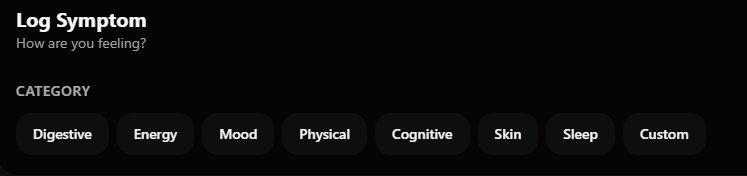
Symptom Logging
- Select or create symptom - Choose severity - Add notes (optional) - Select time + date - Tap Log Symptom
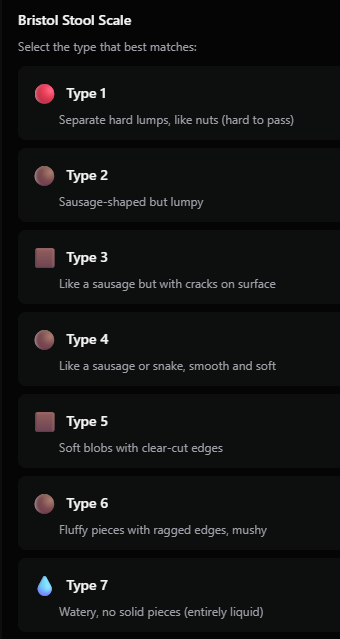
Bowel Movement Logging
- Select Bristol Stool Scale type (1 - 7) - Add time + date - Add notes (optional) - Tap Log


.png)